
Classroom buying guide · UK
ViewSonic vs SMART vs Clevertouch for schools
Choose around the lessons and accounts your school already uses: SMART Notebook and Ink, ViewSonic myViewBoard, or Clevertouch LYNX Whiteboard. Trial the workflow with teachers and IT staff, then compare the complete installed cost across your rooms.
By TopAV · Meet the team · Updated
Three 65-inch models to shortlist
Use the same screen size as a starting point. These are specific catalogue models, not a ranking of every product each brand makes.
Current catalogue prices, including VAT, for the display only. Delivery and installation depend on the order. Prices can change; check the product page and your itemised quote. The larger model is not necessarily the more expensive option.
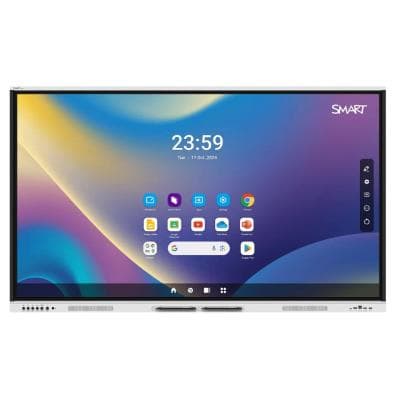
GX165G-V4-5A
SMART Board GX065-V4 Plus 65" Interactive Display
£1,979.95 inc. VAT
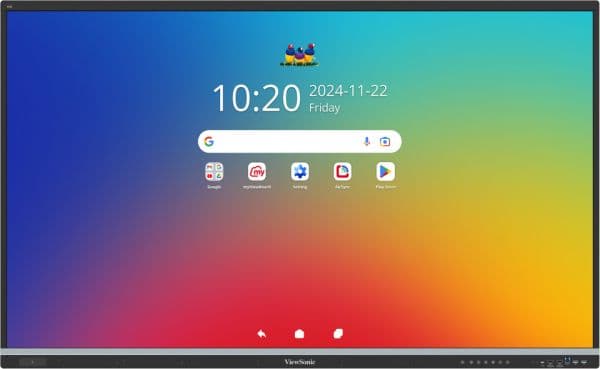
IFP6551-3C
ViewSonic IFP6551-3C 65-inch 4K ViewBoard Interactive Display
£2,467.22 inc. VAT
1541323
Clevertouch 65" Impact LUX, EDLA certified
£2,043.04 inc. VAT
Check the exact model and supplied configuration
SMART: the comparison uses the GX165G-V4 GMS configuration; TopAV’s listed order code is GX165G-V4-5A. Confirm the regional package and warranty suffix.
Clevertouch: SKU 1541323 is listed as IMPACT Lux. We have not treated it as IMPACT Lux 2 or copied the newer model’s specifications onto this item. Ask for the generation and supplied firmware in writing.
ViewSonic: ViewSonic's UK page for the IFP6551-3C lists both 8GB and 16GB of RAM, and both Android 14 and Android 16. TopAV publishes the lower figures (8GB, Android 14) until ViewSonic confirms the supplied configuration; confirm it in your quote.
Start with the teachers’ everyday workflow
SMART GX Plus
Already teaching with Notebook or Ink?
Check whether staying with those tools preserves lesson behaviour and reduces retraining. Confirm which features need additional licences.
Demo task: Bring an existing lesson and test annotations, embedded media and saving.
ViewSonic IFP51
Considering a myViewBoard workflow?
Assess lesson creation, sharing and sign-in alongside the display’s audio and connectivity. Features earn their place when staff will use them.
Demo task: Try the same lesson, laptop and classroom accounts that you use today.
Clevertouch IMPACT Lux
Using or considering LYNX Whiteboard?
Trial the LYNX workflow and staff profile setup. Familiar teaching tools may matter more than a headline hardware difference.
Demo task: Check access to teaching resources and what remains visible after sign-out.
Starting fresh? Give the same teaching task to staff on each shortlisted system. Record where they need help, rather than asking which demonstration looked most impressive.
Compare what happens during a lesson
Published tools and practical checks for the shortlisted models
Teaching tools
- SMART GX Plus
- Notebook, Ink and Mirror
- ViewSonic IFP51
- myViewBoard and AirSync
- Clevertouch IMPACT Lux
- LYNX Whiteboard; teacher resources and files
Google access
- SMART GX Plus
- GMS configuration with Google Play
- ViewSonic IFP51
- EDLA-certified model
- Clevertouch IMPACT Lux
- IMPACT Lux with Google EDLA
Account trial
- SMART GX Plus
- Test managed accounts, permissions and sign-out.
- ViewSonic IFP51
- Test managed accounts, permissions and sign-out.
- Clevertouch IMPACT Lux
- Test managed accounts, permissions and sign-out.
Lessons to bring
- SMART GX Plus
- Notebook files, PDFs and embedded video.
- ViewSonic IFP51
- The same source files, annotations and video.
- Clevertouch IMPACT Lux
- The same source files, annotations and video.
IT handover
- SMART GX Plus
- Confirm update policy and any optional management licences.
- ViewSonic IFP51
- Confirm update policy and any paid management features.
- Clevertouch IMPACT Lux
- Confirm supplied generation, firmware and management terms.
| Decision | SMART GX Plus | ViewSonic IFP51 | Clevertouch IMPACT Lux |
|---|---|---|---|
| Teaching tools | Notebook, Ink and Mirror | myViewBoard and AirSync | LYNX Whiteboard; teacher resources and files |
| Google access | GMS configuration with Google Play | EDLA-certified model | IMPACT Lux with Google EDLA |
| Account trial | Test managed accounts, permissions and sign-out. | Test managed accounts, permissions and sign-out. | Test managed accounts, permissions and sign-out. |
| Lessons to bring | Notebook files, PDFs and embedded video. | The same source files, annotations and video. | The same source files, annotations and video. |
| IT handover | Confirm update policy and any optional management licences. | Confirm update policy and any paid management features. | Confirm supplied generation, firmware and management terms. |
Manufacturer sources: SMART, ViewSonic and Clevertouch. Account and lesson trials are our suggested purchasing checks, not claims of tested compatibility.
Narrowed the choice to two? Read the detailed SMART GX Plus vs ViewSonic IFP51 hardware comparison, including USB-C charging, audio and configuration checks.
Compare a whole-school rollout, not just a screen
1. Set a common brief
Specify each room’s viewing distance, smallest teaching text, touch access, laptop model and network requirements. Different rooms may need different sizes.
2. Run one representative classroom trial
Ask a teacher and an IT colleague to complete a lesson, reconnect a laptop after sleep, switch users and recover from a common problem. Record pass, needs work or not tested for each task.
3. Request the same installation scope
Itemise displays, mounts, cabling, any computers or cameras, delivery, installation and VAT. Compare training and software renewal costs over the same period.
4. Agree ownership after installation
Record who manages updates, who handles faults, the warranty service method and any registration requirements. Confirm the handover and staff training before approving the wider order.
Standardising can simplify training and support, but preserve room-specific accessibility and teaching needs. Compare 65, 75 and 86 inches on your own wall before fixing the size across every room.
Request separate options for your schoolGet a quote for your rooms
Common buying questions
Which interactive display brand is best for a UK school?
Start with the software teachers use and the requirements of the IT team. Compare SMART GX Plus for its Notebook and Ink workflow, ViewSonic IFP51 for myViewBoard, and Clevertouch IMPACT Lux for LYNX Whiteboard. Check current prices, demonstrate real lessons and request the same installation and support scope for each. No brand is the best fit for every school.
Is the Clevertouch IMPACT Lux listed here the Lux 2?
This guide references TopAV catalogue SKU 1541323, listed as the 65-inch IMPACT Lux. It does not identify that item as Lux 2 or apply newer-generation hardware specifications to it. Confirm the generation, supplied firmware and order code in your quote.
Should every classroom use the same display brand?
Standardisation can simplify staff training, shared instructions and support. However, a room with different teaching or accessibility needs may need a different size or setup. Trial a representative classroom before committing to a wider rollout, and document the exceptions.
Does Google EDLA mean every school app will work?
No. Google app access does not establish compatibility with your particular account policies, licences, network or classroom workflow. Ask IT staff to test the proposed configuration with managed accounts and confirm sign-out and update arrangements.
Sources and how we compare
Specifications were checked against the sources below on 13 September 2026. Recommendations are TopAV’s interpretation of published information and purchasing requirements, not results from a hands-on comparison test. Product prices and availability in this guide come from the current catalogue; confirm the full supplied specification and quote before ordering.
TopAV is part of StriveAV and is a ViewSonic Platinum Tier 1 Partner. We sell multiple display brands. Our customer map documents organisation supply records across brands; these are not product reviews or endorsements.